Assisting Voters with Disabilities
This module is for polling places using the , which doesn’t match the equipment you chose. Change your equipment or continue below.
Welcome back. We picked up where you left off.
-
ASSISTING VOTERS WITH DISABILITIES
ASSISTING VOTERS WITH DISABILITIES
A voter with a disability is a voter who is physically unable to mark their ballot. A person who is intoxicated does not qualify as disabled and cannot receive assistance.
From the manual, page 41
-
Who May Receive Assistance?
Who May Receive Assistance?
There are three groups of people who may receive assistance:
- Voters who are visually impaired;
- Voters with a physical disability; and
- Voters who are unable to read, write, or speak English.
Before giving assistance, mark the “Voted by Affidavit” square on the ballot application. Anyone giving assistance must cast the vote as directed by the voter and shall not give information as to how the voter casts their vote. For reference on where to mark the Application, see page 20.
From the manual, page 41
-
The voter must provide two acceptable forms of ID
The voter must provide two acceptable forms of ID
- Driver’s License or State ID
- Utility Bill
- Bank Statement
- Government Check
- Paycheck
- Lease or contract for residence
- Student ID & mail addressed to address of residence
- Other government document
The voter must show documentation with a name and address that match the records.
From the manual, page 41
-
Giving Assistance
Giving Assistance
Assistance is defined as the actual marking of the ballot sheet by selected individuals in the privacy of the voting booth. Provide assistance only upon the voter’s request.
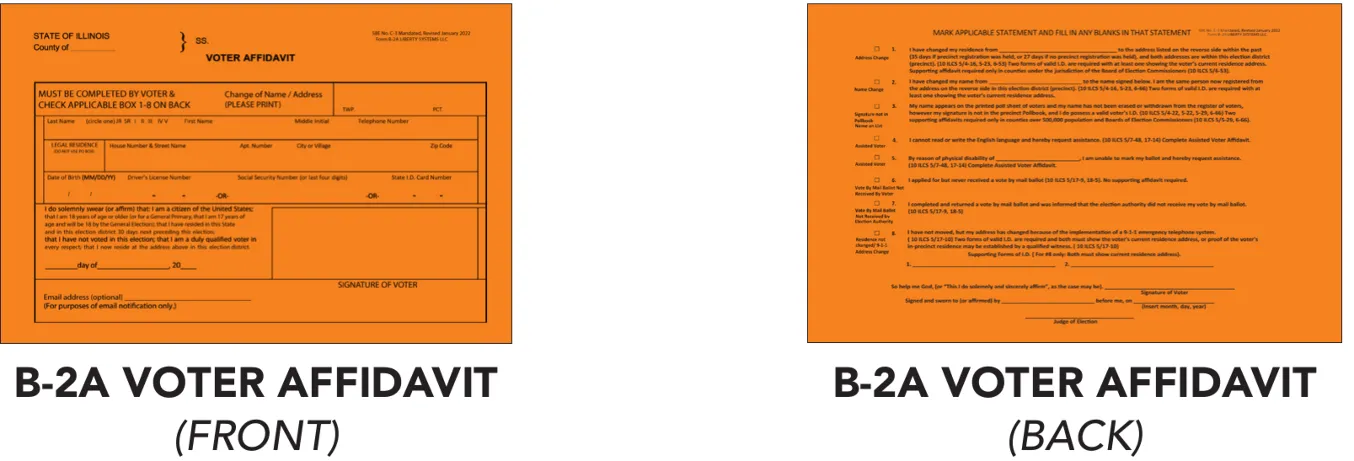
Voters must complete the Voter Affidavit (Form B-2A)—the orange affidavit in the Affidavit Binder.
From the manual, page 41
-
Assisting an Illiterate Voter
Assisting an Illiterate Voter
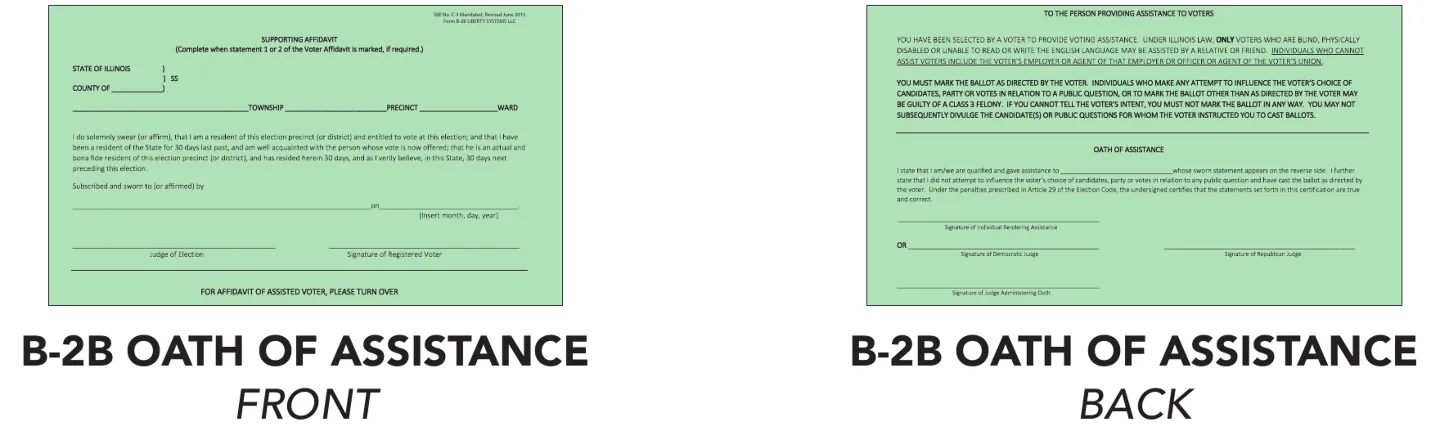
An illiterate voter is a qualified voter who cannot sufficiently read or write English to cast their ballot. Before receiving assistance, the voter signs their name or makes their mark on the Voter Affidavit (B-2A) [Orange]. Before giving assistance, the individual planning to assist must also sign the Oath of Assistance (B-2B) [Green].
Assistance shall be by a person of the voter’s choice—other than the voter’s employer, an agent of that employer, or an officer or agent of the voter’s union. If a voter so chooses, a candidate or precinct committeeperson may provide assistance on Election Day. Should the voter not specify a person to assist in voting, two Judges shall assist the voter, one from each political party. Judges should select which two Judges shall give assistance to voters prior to opening of the polls. Anyone assisting a voter must sign the Oath of Assistance (Form B-2B)—the green form in the Affidavit Binder.
From the manual, page 41 and 42
-
COMMON COURTESIES AND SUGGESTIONS FOR ASSISTING VOTERS WITH DISABILITIES
COMMON COURTESIES AND SUGGESTIONS FOR ASSISTING VOTERS WITH DISABILITIES
- Judges should be considerate of the extra time it might take for a person who has a disability to accomplish tasks and give unhurried attention to a person who has difficulty speaking.
- Judges should speak directly to the person with a disability rather than to any companion accompanying them.
- Judges should speak calmly, slowly, and directly to a person they believe to be hearing impaired. Your facial expressions, gestures, and body movements help in understanding. Do not shout or speak in the person’s ear. If you doubt the voter fully understands you, try writing what you need to communicate.
- Ask for permission and how to proceed before pushing someone in a wheelchair.
- Judges should greet a person who is visually impaired by verbally identifying themselves, both personally and as an Election Judge.
- Provide a guiding device such as a ruler or card for signing forms.
- When offering to assist someone while walking, allow the person to take your arm and make sure to tell them if you are approaching steps or inclines.
- Admit all dogs that assist people with disabilities into the building. Such dogs are highly trained and need no special care other than that provided by the owner. Never distract, pet, or feed the dog.
- Federal law allows voters with disabilities to receive assistance from another person in the voting booth.
- Remember that all voters deserve courteous attention when exercising their right to vote.
From the manual, page 42
-
ASSISTING VOTERS WITH THE FVT TOUCHSCREEN
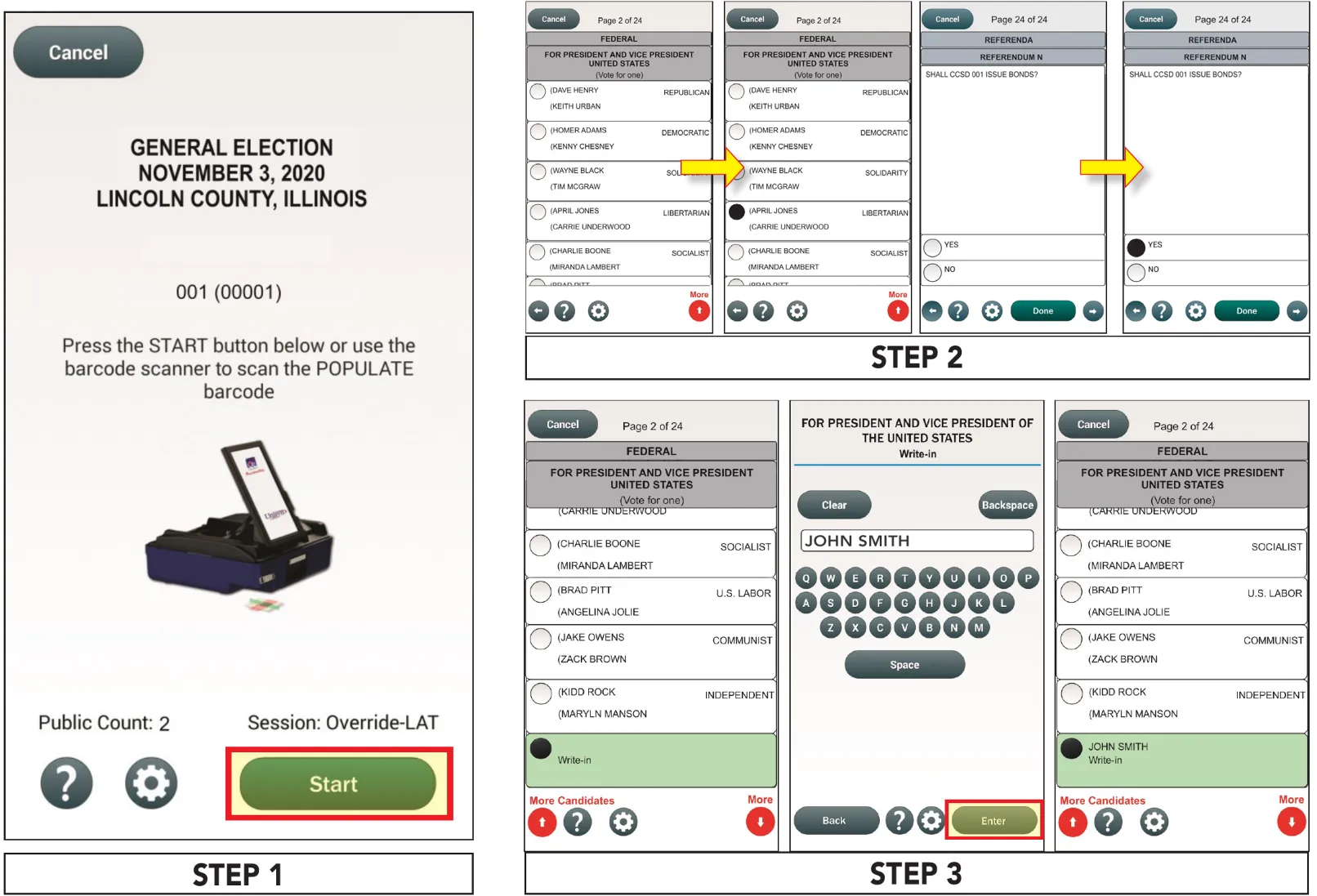
Step 1
Press “Start” to begin voting. The Main Voting Screen will open.
From the manual, page 43
-
ASSISTING VOTERS WITH THE FVT TOUCHSCREEN
Step 2
The voter should press the circle next to the candidate or option of their choice.
From the manual, page 43
-
ASSISTING VOTERS WITH THE FVT TOUCHSCREEN
Step 3
If the voter wishes to use the write-in option, they should press the circle in the write-in box. The keyboard screen will appear, and the voter should type in the name of their choice and press “Enter” to return to the Main Voting Screen. When the Main Voting Screen reappears, the name the voter entered will appear in the write-in box and the circle will be filled in.
From the manual, page 43
-
ASSISTING VOTERS WITH THE FVT TOUCHSCREEN
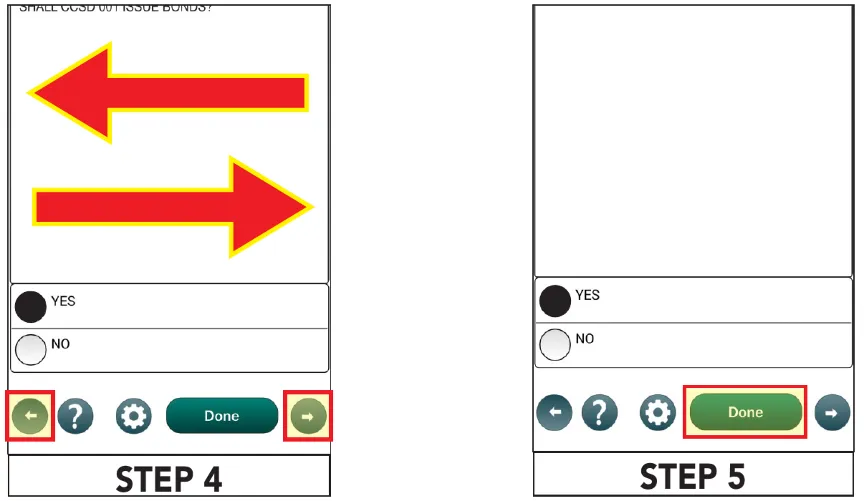
Step 4
The voter can press the arrows in the lower right corner or the lower left corner to move from one contest to another. They can also swipe on the screen from right to left or left to right to move between contests.
From the manual, page 43
-
ASSISTING VOTERS WITH THE FVT TOUCHSCREEN
Step 5
After the voter has finished marking all contests, they should press “Done” to continue to the “Ballot Summary Review.”
From the manual, page 43
-
ASSISTING VOTERS WITH THE FVT TOUCHSCREEN
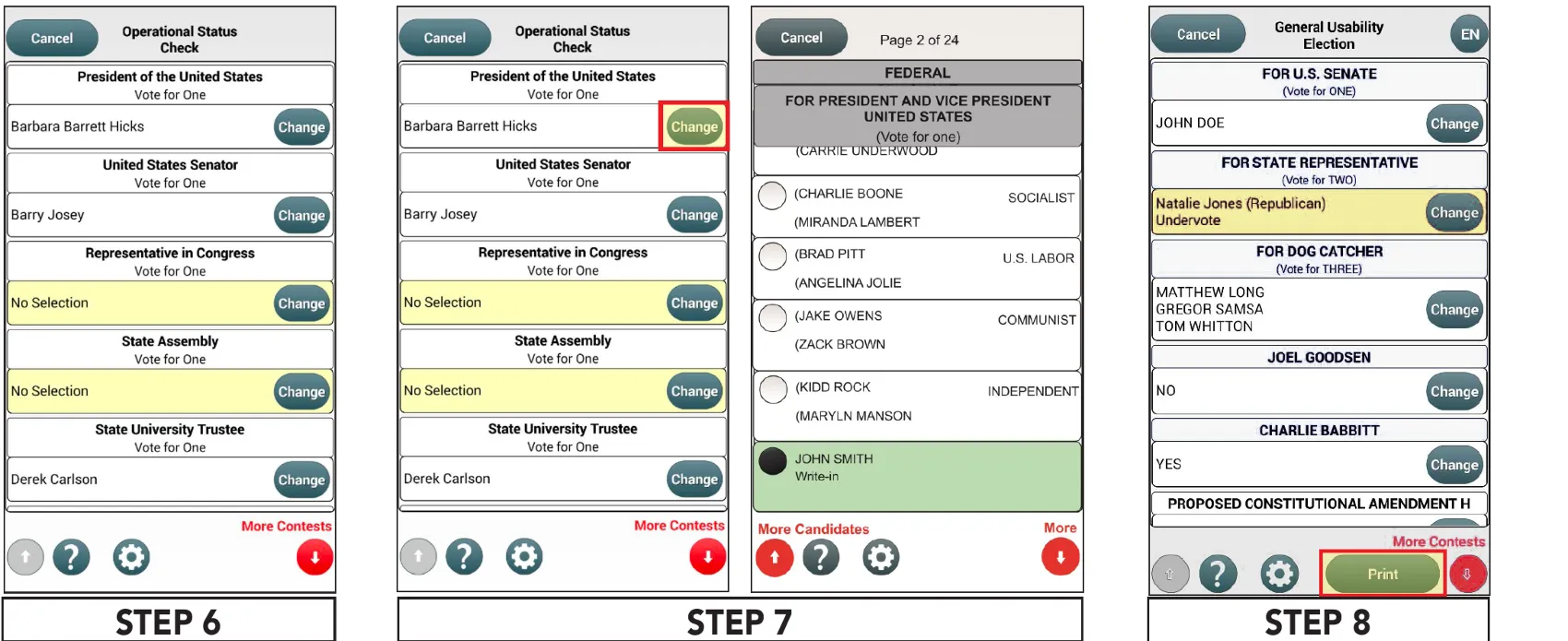
Step 6
The “Ballot Summary Review” screen will open, and all contests that have been skipped or undervoted will be highlighted in yellow.
From the manual, page 44
-
ASSISTING VOTERS WITH THE FVT TOUCHSCREEN
Step 7
The voter can make any necessary or desired changes by selecting the contest. After selecting a contest, the selected contest will reopen. The voter should make their changes and press “Done” to return to the “Ballot Summary Review” screen to finish the review.
From the manual, page 44
-
ASSISTING VOTERS WITH THE FVT TOUCHSCREEN
Step 8
When the voter has reviewed all contests, the “Print” button will be enabled. When ready, the voter can press “Print” to print out their filled-in paper ballot.
From the manual, page 44
-
ASSISTING VOTERS WITH THE FVT TOUCHSCREEN
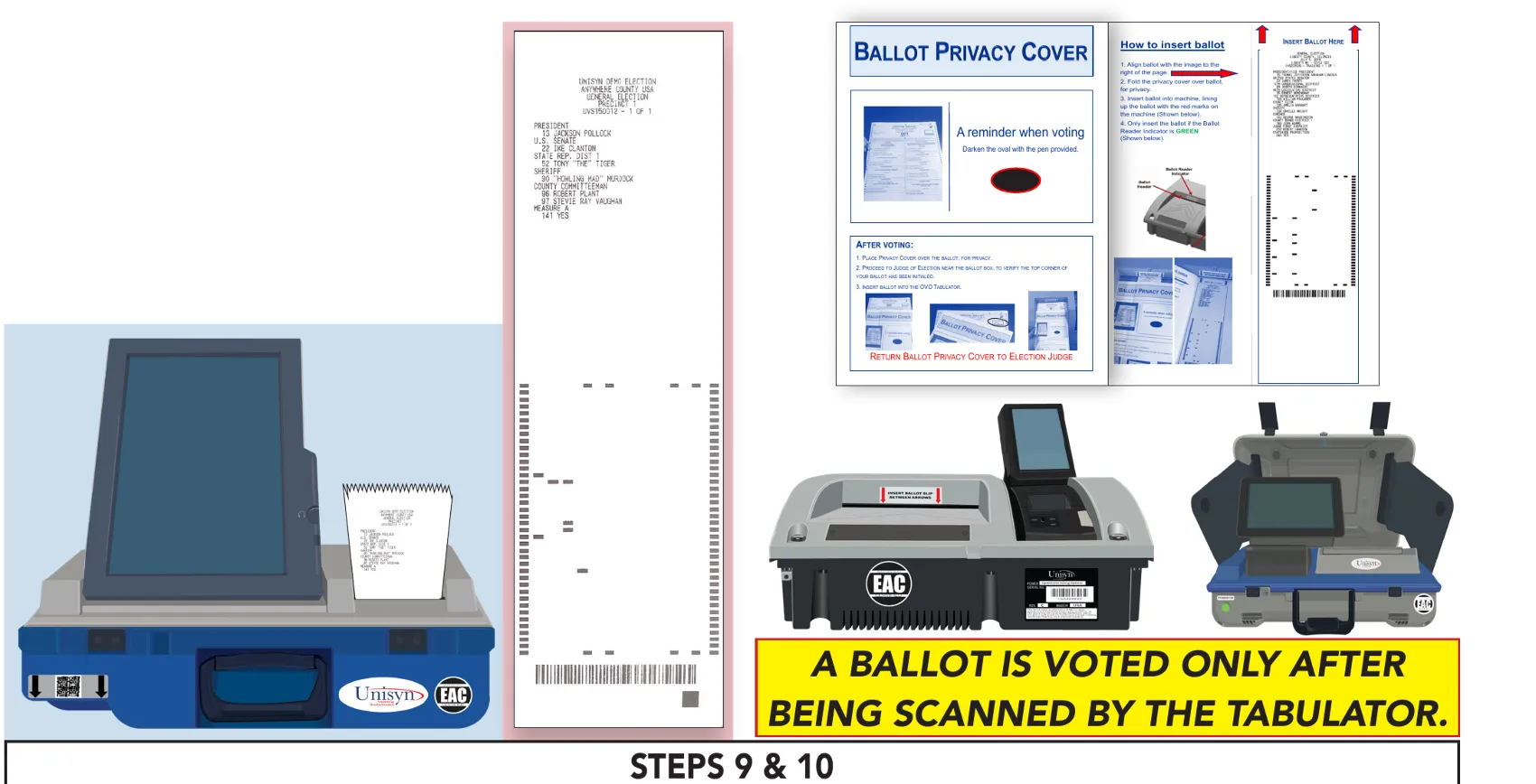
Step 9
When the paper ballot prints, the voter should place the ballot in a privacy cover in such a manner that the back of the ballot is exposed enough to allow the Ballot Box Judge (Station 4) to initial the back of the ballot before the voter deposits it into the Tabulator (OVO or FVS).
From the manual, page 44
-
ASSISTING VOTERS WITH THE FVT TOUCHSCREEN
Step 10
After the ballot is initialed, the voter may deposit the ballot into the Tabulator to have their ballot counted. A ballot is only voted after being deposited in the Tabulator (OVO/FVS).
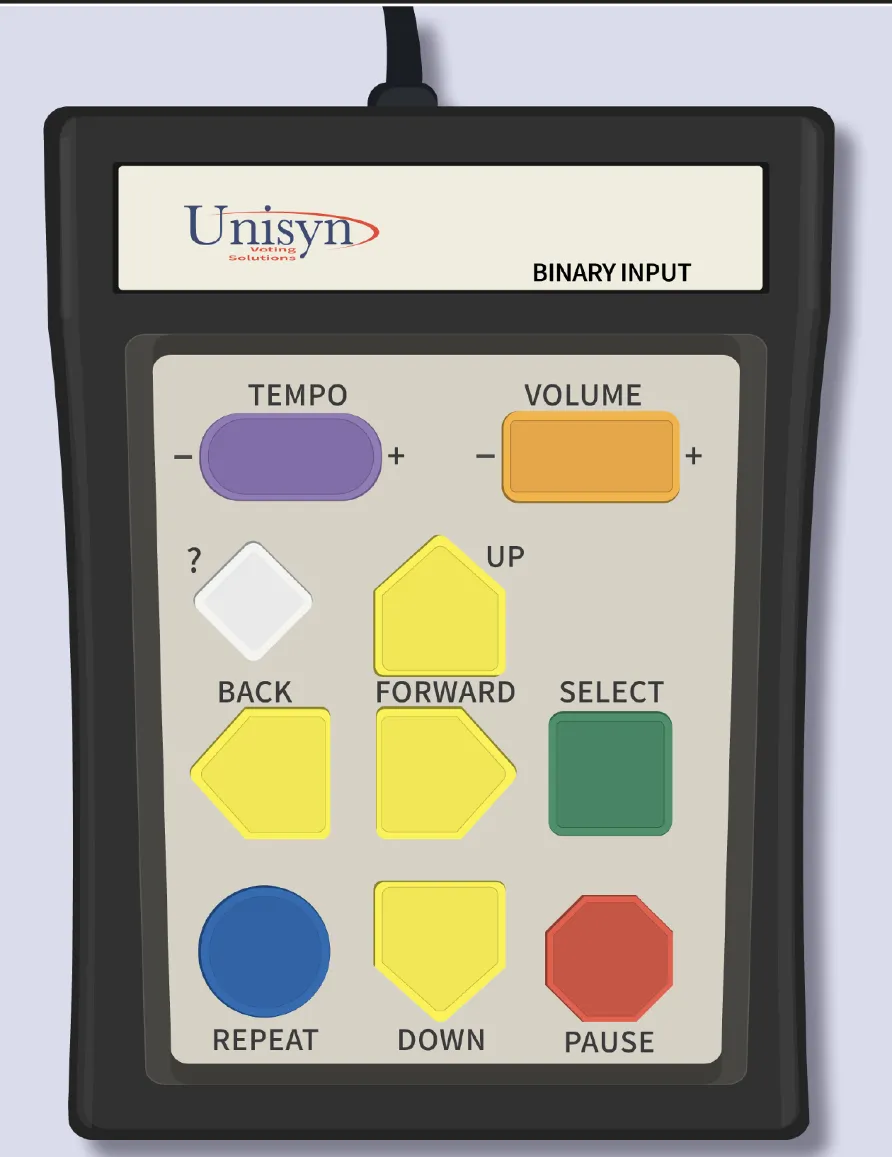
1. TEMPO – The purple oval-shaped button in the upper left corner allows the voter to increase or decrease the tempo of the audio played through the headphones.
2. VOLUME – The orange rectangular button in the top right of the keypad allows the voter to increase or decrease the volume of the audio played through the headphones.
3. HELP – The white diamond button will prompt a help screen to appear that will describe to the voter how the keypad functions and what action each button performs.
4. REPEAT – The blue circular button allows the voter to repeat the last sentence read. It will also restart the audio if it has been manually paused.
5. SELECT – The green square button allows the voter to select a specific candidate or answer to a question.
6. PAUSE – The red octagon-shaped button stops the audio function. To restart the audio, press the blue circular REPEAT button.
From the manual, page 44 and 45
-
FVT KEYPAD FUNCTIONALITY
Step 7
DIRECTIONAL BUTTONS – The yellow pentagon-shaped buttons are each individually labeled according to their function.
- FORWARD (right yellow button) – This button moves the voter forward through the contest list—to the next contest on the ballot.
- BACK (left yellow button) – This button moves the voter backward through the contest list—to the previous contest on the ballot.
- UP/DOWN – These buttons cycle the voter up and down through the list of candidates in any particular contest.
When entering a write-in candidate, the yellow directional buttons will cycle through the keypad alphabetically using the “UP” and “DOWN” directional buttons and the “SELECT” button to choose the desired letters—i.e., starting at “A” and pressing the “DOWN” directional button will cycle to “B,” and then pressing the “UP” directional button will cycle back to “A.” To confirm the write-in entry and press “DONE,” the voter may cycle “UP” past “A” or “DOWN” all the way past “Z.”
A disabled voter who cannot enter a polling place due to the structural features of the building may request to vote outside the polling place. The Election Authority should receive a request letter no later than the close of business on the day before the election. The Election Authority must notify the appropriate Election Judges of the names of the individuals who have made such a request.
From the manual, page 45 and 46
-
Process
Step 1
Two Judges, one from each political party, deliver an application to the voter.
From the manual, page 46
-
Process
Step 2
The Judges will then transport the completed application to the Verification Judges.
From the manual, page 46
-
Process
Step 3
Once the Verification Judges receive the completed application, they will verify the voter’s signature and address to determine if the individual is qualified to vote.
From the manual, page 46
-
Process
Step 4
The Ballot Distribution Judge will locate the appropriate ballot and a privacy cover for the two traveling Judges to deliver to the voter.
From the manual, page 46
-
Process
Step 5
The Judges provide the ballot and a portable voting booth (or enclosure) to the voter to allow them to mark their ballot in secret.
From the manual, page 46
-
Process
Step 6
After the voter has voted, the two Judges shall take the ballot (keeping it behind the privacy cover) back into the polling place and deposit it into the tabulator.
From the manual, page 46
-
Process
Step 7
Don’t forget to give the voter an “I Voted” sticker.
In no case shall a ballot be delivered to a voter beyond fifty feet (50 ft) from the entrance to the building in which the polling place is located.
From the manual, page 46
-
Check your understanding
Questions about equipment your polling place doesn’t use are left out.
Draft quiz: these questions haven’t been reviewed by Liberty Systems yet.
-
You’ve finished this module
You’ve worked through Assisting Voters with Disabilities (manual pages 41–46).
Tip: you can use the ← and → arrow keys.