Closing the Polls – FVS Tabulator
This module is for polling places using the FVS Tabulator, which doesn’t match the equipment you chose. Change your equipment or continue below.
Welcome back. We picked up where you left off.
-
CLOSING THE POLLS
Step 1
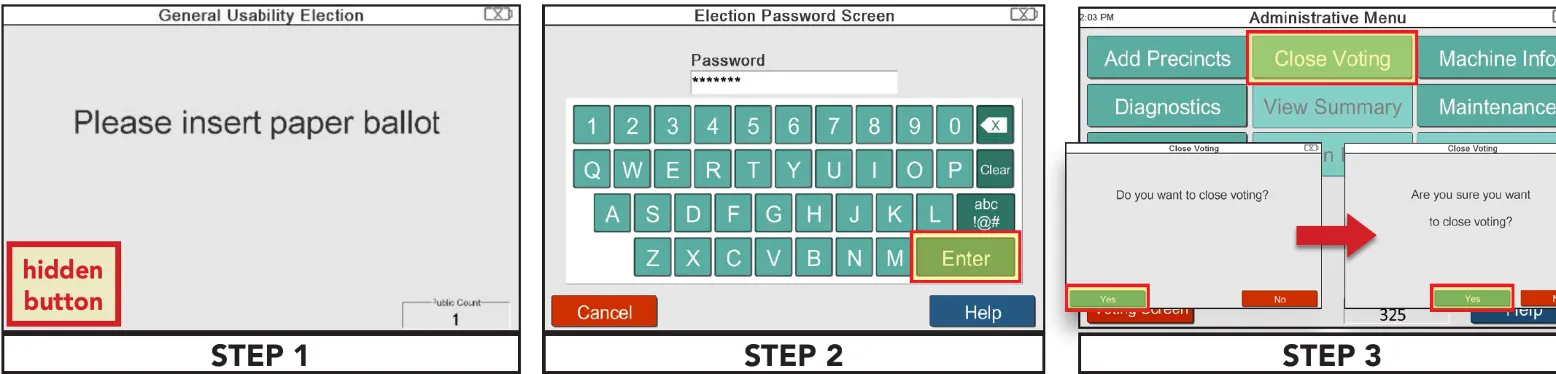
To begin closing, access the “Administrative Menu” screen by pressing the hidden button in the lower left-hand corner of the screen. The button will not be visible on screen.
From the manual, page 65
-
CLOSING THE POLLS
Step 2
The “Election Password Screen” will appear. Enter the Election Password provided and press “Enter.”
From the manual, page 65
-
CLOSING THE POLLS
Step 3
The “Administrative Menu” will open. Press “Close Voting.” You will be prompted to confirm twice. Press “Yes” both times.
From the manual, page 65
-
CLOSING THE POLLS
Step 4
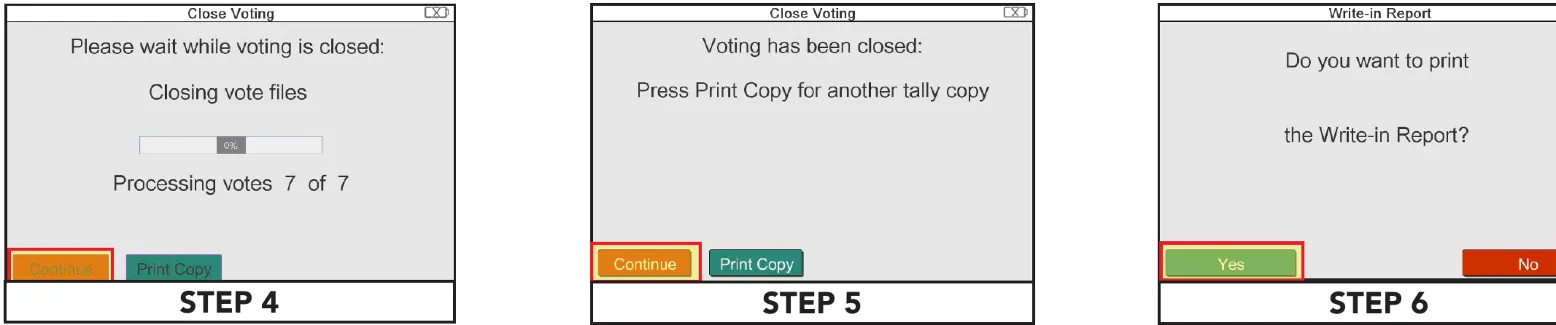
Wait a few minutes while the votes are processed. The “Election Summary” Report will print when finished. Save this report after all Judges have signed it.
From the manual, page 65
-
CLOSING THE POLLS
Step 5
If required, print additional copies with “Print Copy.” When finished printing, press “Continue.”
From the manual, page 65
-
CLOSING THE POLLS
Step 6
The “Write-In Report” screen will appear. Press “Yes.” The “Write-In Report” will print. Save this report after all Judges have signed it.
From the manual, page 65
-
CLOSING THE POLLS
Step 7
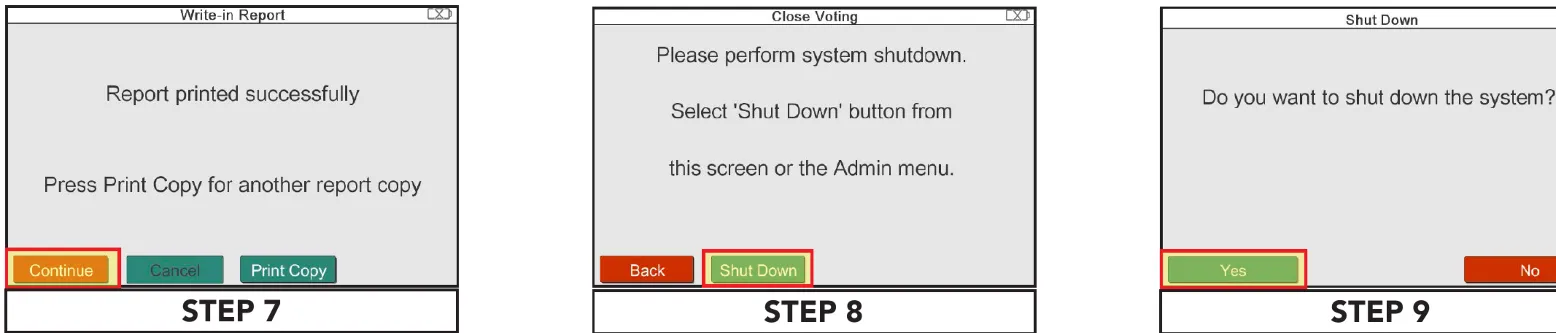
If required, print additional copies with “Print Copy.” If not, press “Continue.”
From the manual, page 65
-
CLOSING THE POLLS
Step 8
The “Close Voting” screen will appear. Press “Shut Down.”
Some Election Authorities may have requested the Tabulator be programmed to print the desired number of copies of the “Election Summary” Report during the initial printing. In this case, the Judges will not have to press “Print Copy.” Please verify with your Election Authority how many copies of the report you will need.
From the manual, page 65
-
CLOSING THE POLLS
CLOSING THE POLLS
From the manual, page 65
-
CLOSING THE POLLS
Step 9
Another screen will appear prompting you to confirm; press “Yes.”
From the manual, page 65
-
CLOSING THE POLLS
Step 10
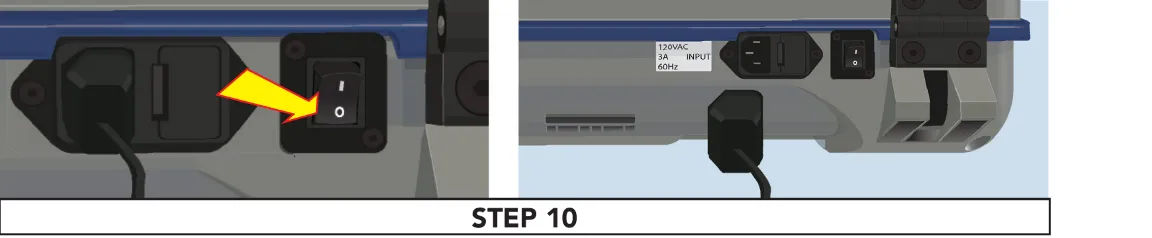
Wait twenty seconds for the screen to go black. Once the screen goes black, flip the power switch from “I” to “O” (“I” is ON and “O” is OFF). Unplug the power cord from the FVS.
If you have been instructed to return the TM Stick, continue with the following instructions.
If not, skip this section and go directly to the “Preparing for Transport” section.
From the manual, page 65 and 66
-
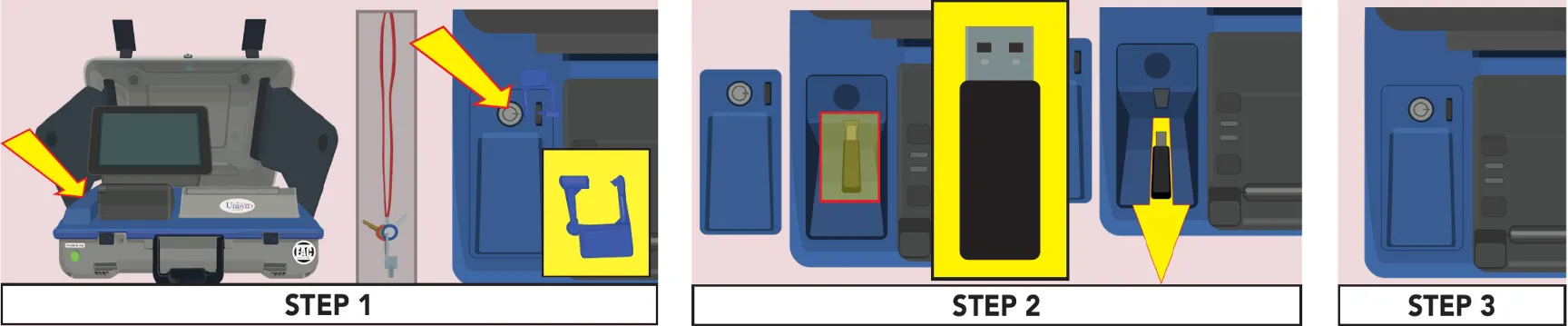
REMOVING THE TM STICK
Step 1
Break the blue seal, insert the barrel key into the lock to the left of the printer, and remove the cover.
From the manual, page 66
-
REMOVING THE TM STICK
Step 2
Gently remove the TM Stick.
From the manual, page 66
-
REMOVING THE TM STICK
Step 3
Replace the cover and lock it back into place.
From the manual, page 66
-
PREPARING FOR TRANSPORT
PREPARING FOR TRANSPORT
Your Election Authority may have more specific instructions for how they want materials and equipment handled; please defer to their instructions when available.
From the manual, page 66
-
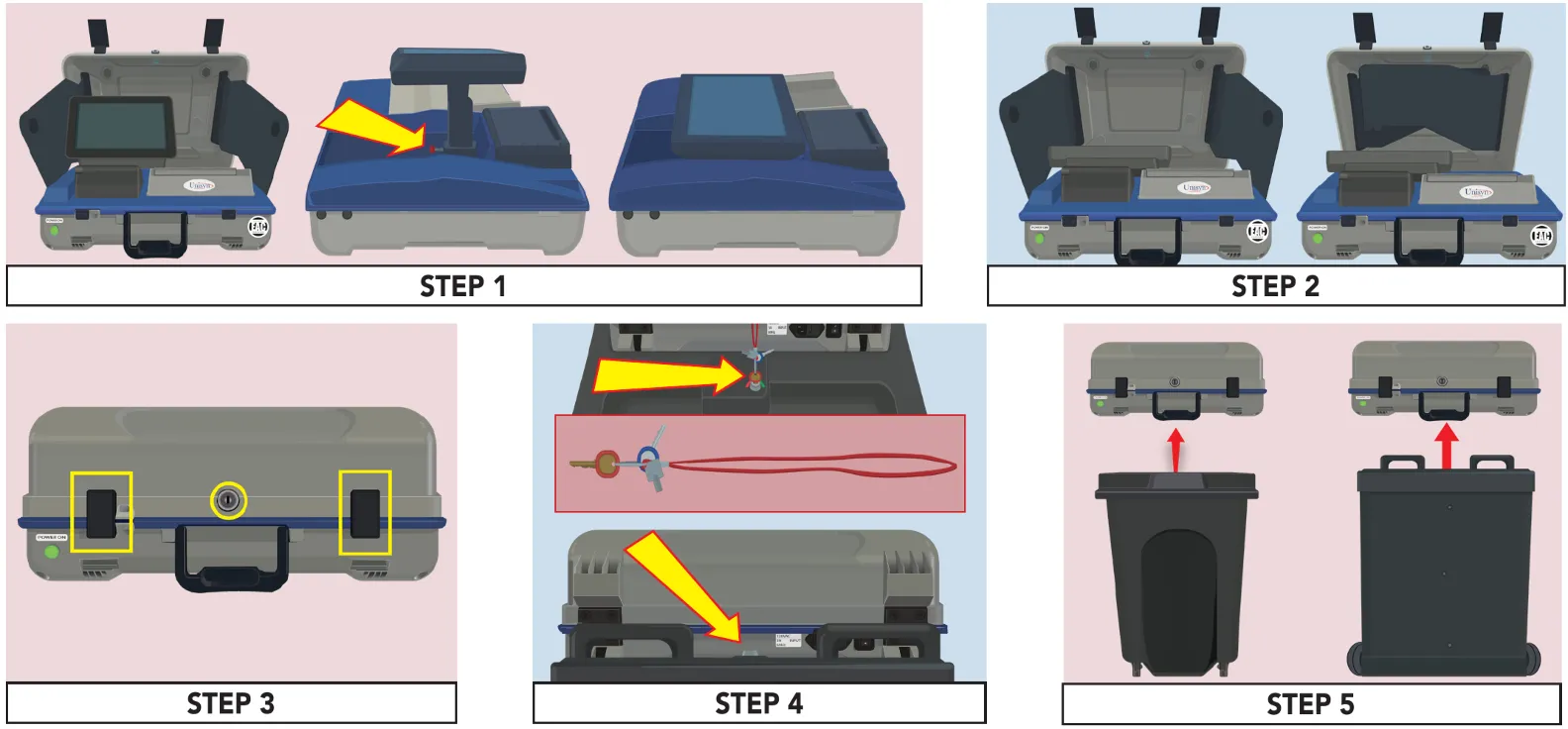
PREPARING FOR TRANSPORT
Step 1
Tilt the screen back so it is parallel to the ground. Then use the red button at the base of the stand to release the lock mechanism and gently lower the screen back to the shipping position.
From the manual, page 66
-
PREPARING FOR TRANSPORT
Step 2
Fold the privacy panels back into the shipping position.
From the manual, page 66
-
PREPARING FOR TRANSPORT
Step 3
Close the FVS cover, latch the fasteners, and lock it (blue key).
From the manual, page 66
-
PREPARING FOR TRANSPORT
Step 4
Using the red key, unlock the lock on the lid of the ballot box used to secure the Tabulator to the lid.
From the manual, page 66
-
PREPARING FOR TRANSPORT
Step 5
Remove the Tabulator from the top of the ballot box.
From the manual, page 66
-
PREPARING FOR TRANSPORT
Step 6
Follow any further instructions from your Election Authority regarding the transportation of the FVS Tabulator (and TM Stick).
From the manual, page 66
-
Check your understanding
Questions about equipment your polling place doesn’t use are left out.
Draft quiz: these questions haven’t been reviewed by Liberty Systems yet.
-
You’ve finished this module
You’ve worked through Closing the Polls – FVS Tabulator (manual pages 65–66).
Tip: you can use the ← and → arrow keys.