Closing the Polls – FVT Touchscreen
This module is for polling places using the , which doesn’t match the equipment you chose. Change your equipment or continue below.
Welcome back. We picked up where you left off.
-
If you are using the FVT Barcodes…
Step 1
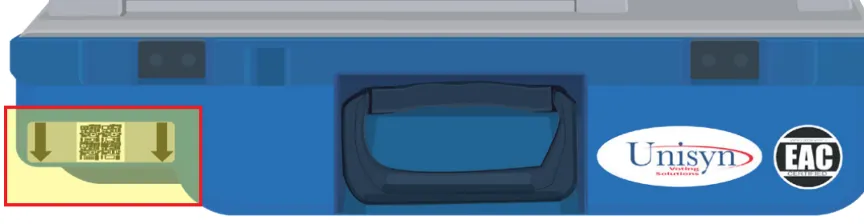
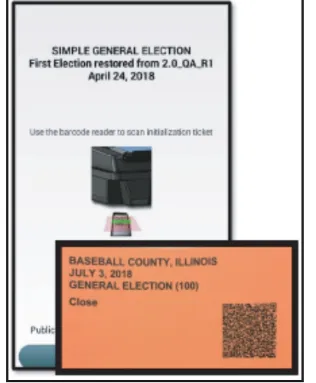
At the Welcome Screen, scan the orange “Close” barcode. The scanner is under the front left corner of the FVT.
Proceed to “Finishing the Closing Process” to continue the closing process.
From the manual, page 70
-
If you are using the FVT Manual Entry…
Step 1
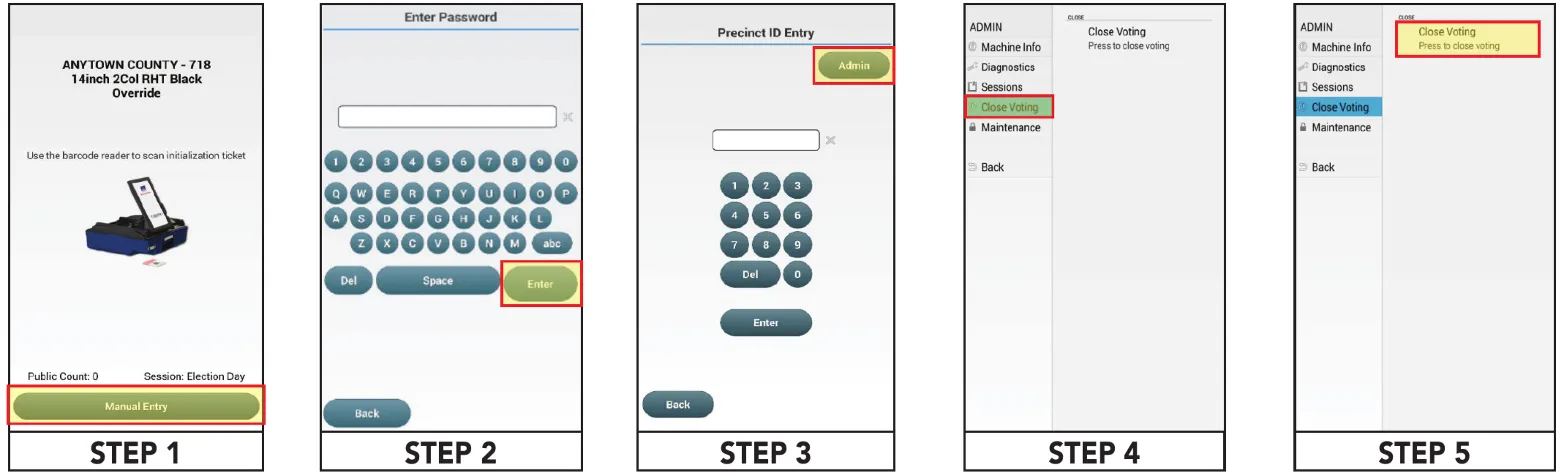
To begin, push the “Manual Entry” button at the bottom of the screen.
From the manual, page 70
-
If you are using the FVT Manual Entry…
Step 2
Enter the Election Password provided by your Election Authority and press “Enter.”
From the manual, page 70
-
If you are using the FVT Manual Entry…
Step 3
The “Precinct ID Entry” screen will appear. Press the “Admin” button.
From the manual, page 70
-
If you are using the FVT Manual Entry…
Step 4
When the “Admin” screen opens, press the “Close Voting” tab in the left panel.
From the manual, page 70
-
If you are using the FVT Manual Entry…
Step 5
Next, press “Close Voting” in the right panel when it appears.
Proceed to “Finishing the Closing Process” to continue the closing process.
From the manual, page 70
-
Finishing the Closing Process
Step 1
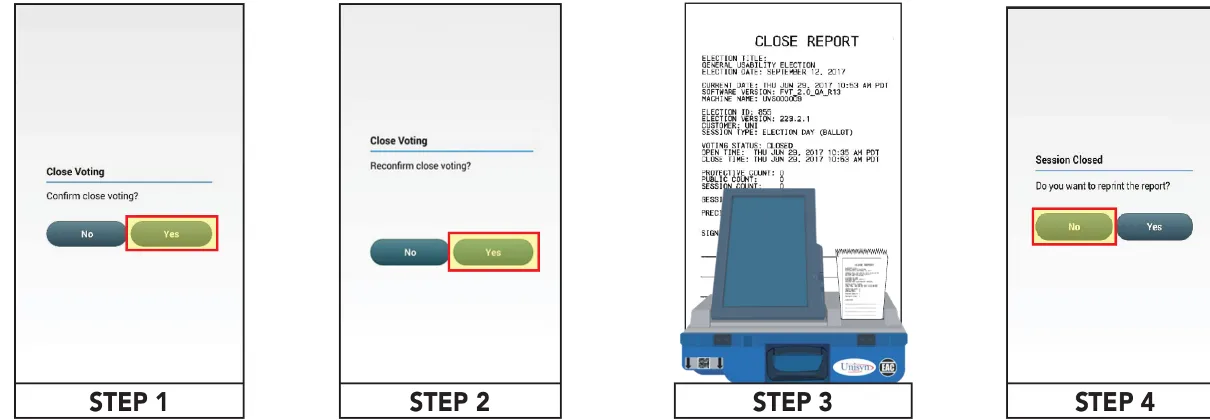
The “Close Voting” screen will appear requesting confirmation; press “Yes.”
From the manual, page 70
-
Finishing the Closing Process
Step 2
You will be asked to reconfirm. Press “Yes” again.
From the manual, page 70
-
Finishing the Closing Process
Step 3
The “Close Report” will print.
From the manual, page 70
-
Finishing the Closing Process
Step 4
You will be asked if you want to reprint the report. When you are finished printing, press “No.” Save this report after all Judges have signed it.
After completing Step 4, the “Power Off” screen will appear.
If, for any reason, you find yourself back at the “Welcome Screen,” proceed from Step 1.
If you are preparing for transport after closing voting and the FVT is on the “Power Off” screen, proceed from Step 5.
From the manual, page 70 and 71
-
PREPARING FOR TRANSPORT
Step 1
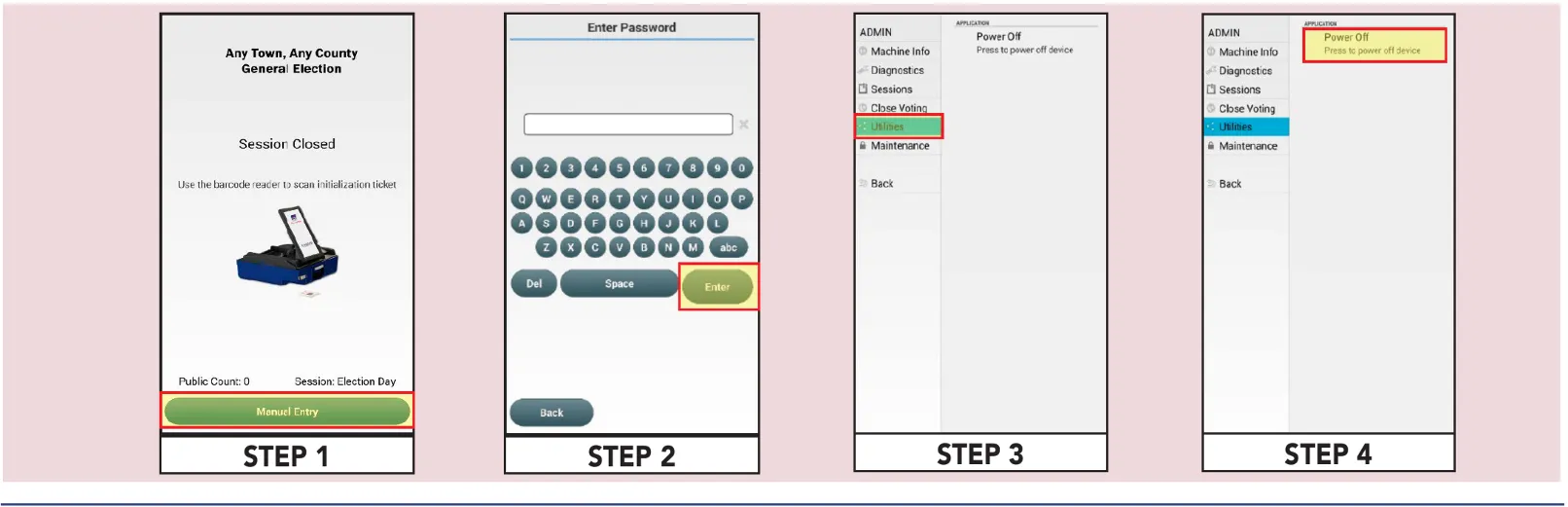
Once back at the “Welcome Screen,” press “Manual Entry.”
From the manual, page 71
-
PREPARING FOR TRANSPORT
Step 2
When the “Password Screen” opens, enter the Election Password and press “Enter.” If the “Precinct ID” screen appears, press the “Admin” button in the upper right corner of the screen in order to open the “Admin” screen and proceed with Step 3.
From the manual, page 71
-
PREPARING FOR TRANSPORT
Step 3
On the “Admin” screen, press the “Utilities” tab in the left panel.
From the manual, page 71
-
PREPARING FOR TRANSPORT
Step 4
Once in the “Utilities” tab, press “Power Off” in the right panel.
From the manual, page 71
-
PREPARING FOR TRANSPORT
Step 5
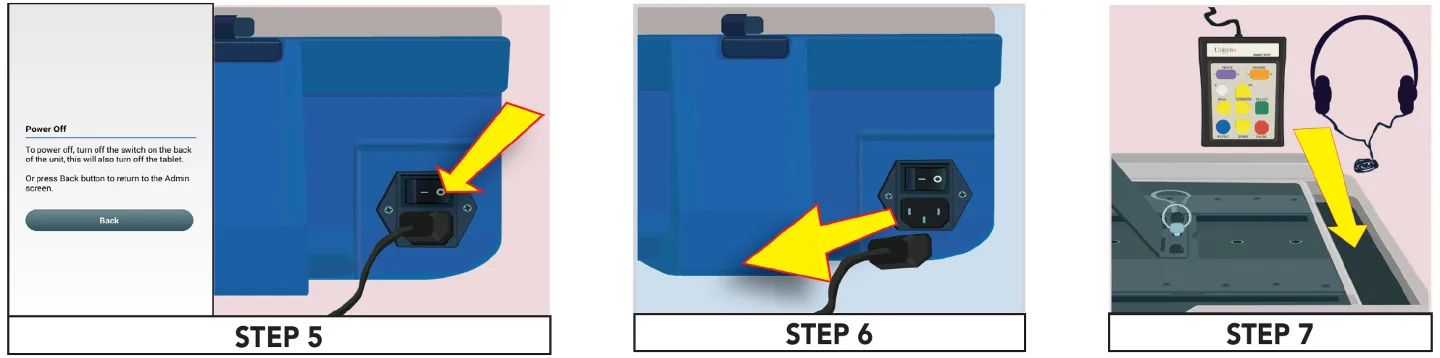
The “Power Off” screen will appear. To finish the shutdown process, flip the power switch from “I” to “O” (“I” is ON and “O” is OFF).
From the manual, page 71
-
PREPARING FOR TRANSPORT
Step 6
Remove the power cord from the port on the back of the machine.
From the manual, page 71
-
PREPARING FOR TRANSPORT
Step 7
Return the headphones and keypad to their compartment.
From the manual, page 71
-
PREPARING FOR TRANSPORT
Step 8
Remove the pin from the kickstand and gently lower the screen back to its shipping position.
From the manual, page 71
-
PREPARING FOR TRANSPORT
Step 9
Finally, replace the lid. To secure it in place, fasten the latches and lock the front (blue key).
From the manual, page 71
-
Check your understanding
Questions about equipment your polling place doesn’t use are left out.
Draft quiz: these questions haven’t been reviewed by Liberty Systems yet.
-
You’ve finished this module
You’ve worked through Closing the Polls – FVT Touchscreen (manual pages 70–71).

Tip: you can use the ← and → arrow keys.