Changing the Paper Roll – FVS Tabulator
This module is for polling places using the FVS Tabulator, which doesn’t match the equipment you chose. Change your equipment or continue below.
Welcome back. We picked up where you left off.
-
CHANGING THE PAPER ROLL
CHANGING THE PAPER ROLL
A printer error may display for a few reasons: “paper is low,” “no paper,” or a printer error during the System Check when opening the polls.
From the manual, page 67
-
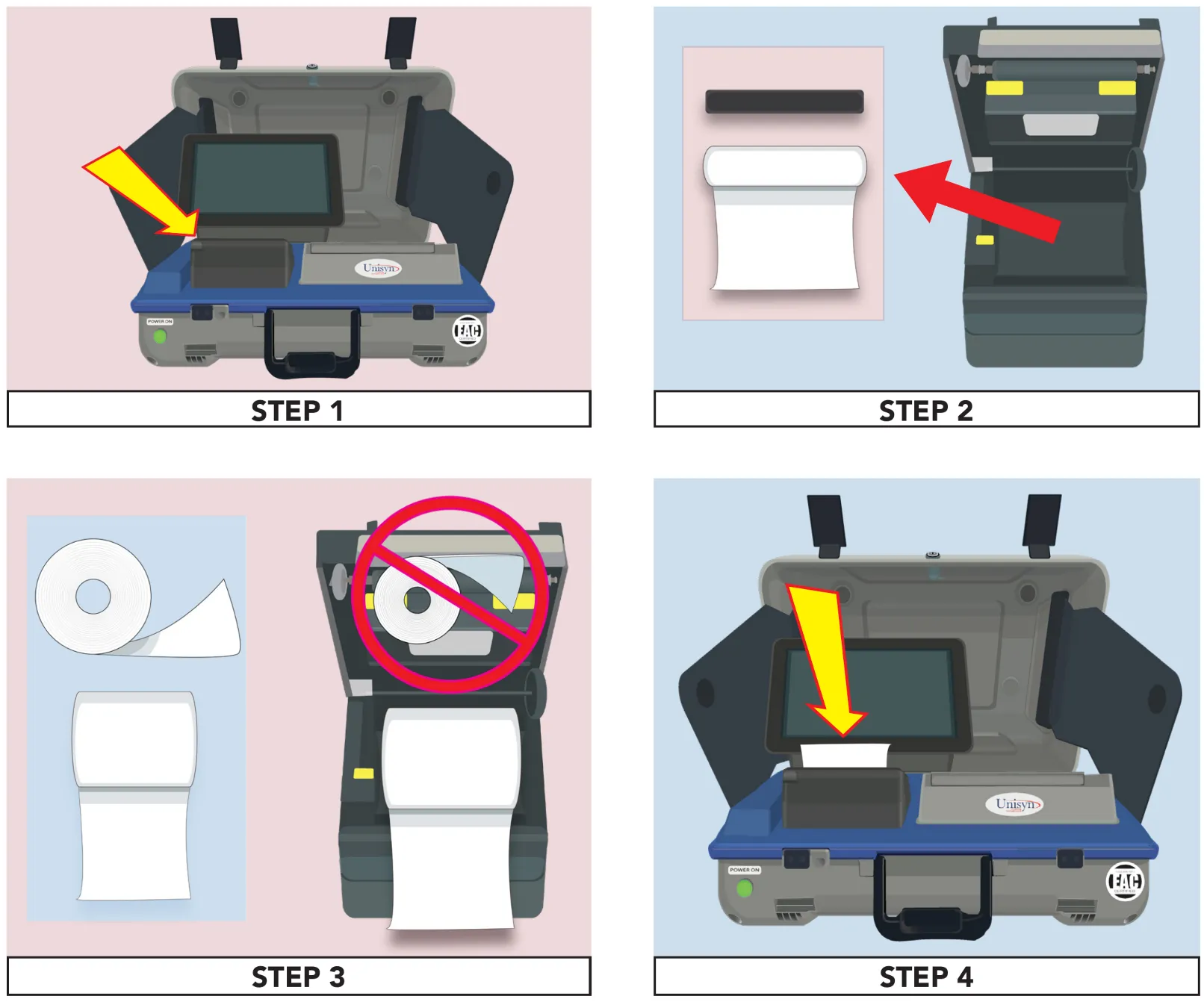
To change the printer paper roll, proceed with the following instructions:
Step 1
To open the printer, push the printer cover release button on the front left corner of the top of the printer.
From the manual, page 67
-
To change the printer paper roll, proceed with the following instructions:
Step 2
Remove the low or empty paper roll from the printer.
From the manual, page 67
-
To change the printer paper roll, proceed with the following instructions:
Step 3
Insert the new roll of paper, making sure to feed the paper from underneath the roll. Do not feed the paper over the top of the roll.
From the manual, page 67
-
To change the printer paper roll, proceed with the following instructions:
Step 4
Close the printer by firmly pushing down until you hear it click into place.
From the manual, page 67
-
To change the printer paper roll, proceed with the following instructions:
Step 5
The printer will activate and push out a small amount of paper to indicate it is ready to print.
From the manual, page 67
-
You’ve finished this module
You’ve worked through Changing the Paper Roll – FVS Tabulator (manual page 67).
Tip: you can use the ← and → arrow keys.