Changing the Paper Roll – FVT Touchscreen
This module is for polling places using the , which doesn’t match the equipment you chose. Change your equipment or continue below.
Welcome back. We picked up where you left off.
-
CHANGING THE PAPER ROLL
CHANGING THE PAPER ROLL
A printer error may display for a couple of reasons: either “paper is low” or “no paper.”
From the manual, page 72
-
To change the printer paper roll, proceed with the following instructions:
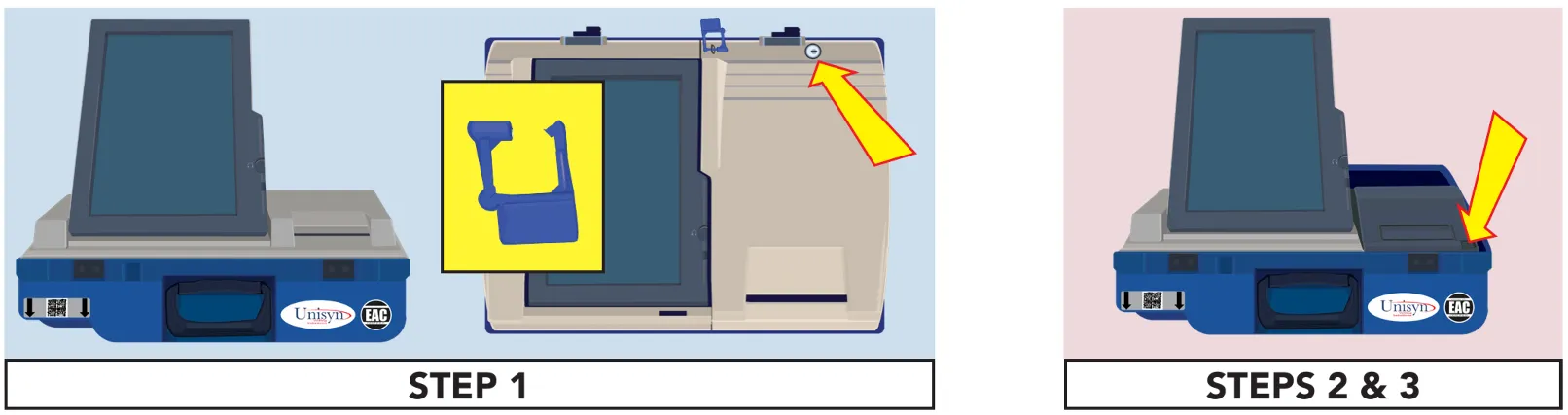
Step 1
Use the blue key provided to unlock the gray printer cover on the back right side of the top of the FVT.
From the manual, page 72
-
To change the printer paper roll, proceed with the following instructions:
Step 2
Remove the cover and set it to the side.
From the manual, page 72
-
To change the printer paper roll, proceed with the following instructions:
Step 3
Open the printer lid by pressing the lever on the bottom right corner of the printer and lifting the lid.
From the manual, page 72
-
To change the printer paper roll, proceed with the following instructions:
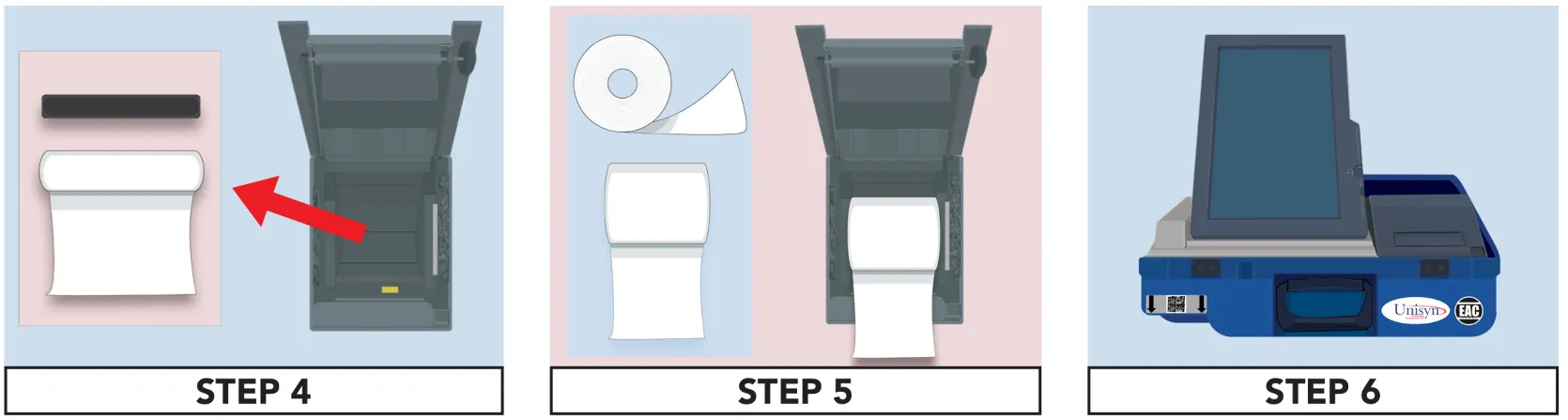
Step 4
Remove the used paper roll.
From the manual, page 72
-
To change the printer paper roll, proceed with the following instructions:
Step 5
Insert the new paper roll, making sure to feed the paper from underneath the roll. Do not feed the paper over the top of the roll.
From the manual, page 72
-
To change the printer paper roll, proceed with the following instructions:
Step 6
Pull out a small amount of paper and close the cover. Press down on both sides of the cover to secure it properly. The printer will reset by cutting off the excess paper fed through the opening.
From the manual, page 72
-
To change the printer paper roll, proceed with the following instructions:
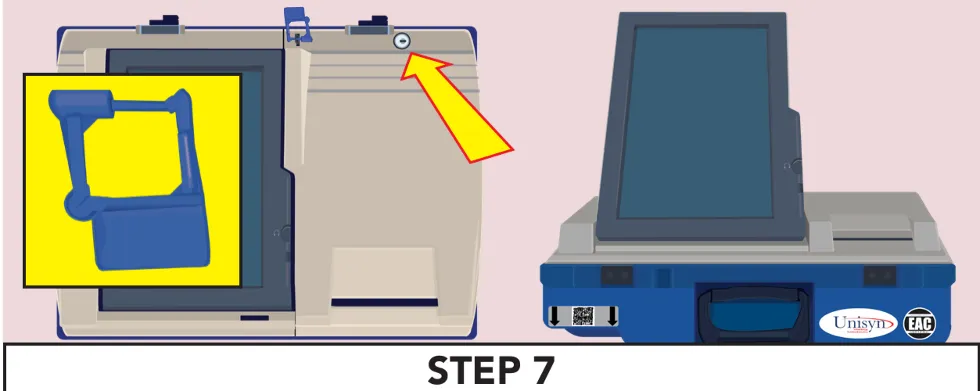
Step 7
Replace the printer cover and lock it into place (blue key). Resecure the cover with a blue security seal found in your Supply Bag.
Important to note: If the paper roll is changed while the power to the FVT is turned off, the printer will not trim the excess paper. This will cause the machine to print a paper ballot that is not the correct length, which may cause the Tabulator to reject the ballot as “invalid.”
Always change the paper roll when the power is on.
From the manual, page 72
-
You’ve finished this module
You’ve worked through Changing the Paper Roll – FVT Touchscreen (manual page 72).
Tip: you can use the ← and → arrow keys.